How to Track Freelance Clients, Projects and Payments in One Spreadsheet
A simple system for tracking leads, active projects, invoices and income as a freelancer.
Why tracking clients matters
When you freelance, you are the sales team, the project manager and the accounts department at once. Without one place to keep track, small things slip: a lead you meant to follow up with goes cold, an invoice you sent last month is never chased, and at tax time you have to rebuild the year from bank statements and old emails.
A simple tracker fixes that. It tells you who you are working with, what you are owed, what is overdue and how much you actually earned. It also makes you look more organized to clients, because you reply on time, invoice promptly and never send the same invoice number twice.
Why a spreadsheet beats a CRM when you're starting
If you work alone with a manageable number of clients, a spreadsheet is usually enough. It is free or low cost, fast to open, works offline, and you fully own the data. You can see everything on one screen, change columns whenever your process changes, and there is no monthly subscription. If your client list grows to the point where you need shared inboxes, automations or a team, you can move to a dedicated CRM later, and your spreadsheet becomes a clean export to start from.
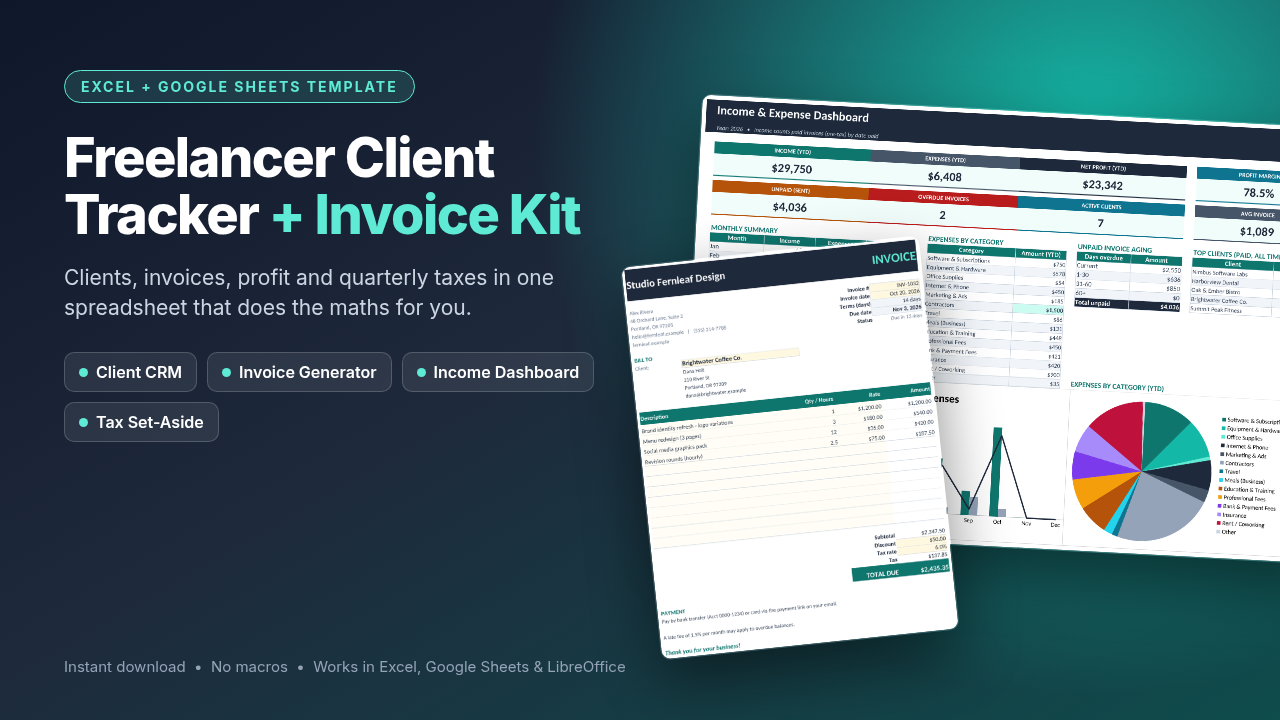
Freelancer Client Tracker + Invoice Kit
Clients, projects, invoices and an income dashboard in one spreadsheet.
Get it →What to track
- Clients: contact details, status (lead, proposal sent, active, past), where they came from, your rate and payment terms
- Follow-ups: the last time you spoke and the next date you plan to get in touch
- Work and projects: what you are doing for each client, noted against the client and itemized on each invoice
- Invoices: number, issue date, due date, amount, status and date paid
- Expenses: what you spent, on what category, and whether it is a business deduction
- Income summary: monthly income, outstanding balance, overdue invoices and top clients
What is in the Freelancer Client Tracker + Invoice Kit
The kit is one Excel and Google Sheets workbook (it also opens in LibreOffice) with no macros. It comes as a blank copy for your own data and a sample copy filled with made-up clients, plus a quick-start guide. These are the tabs:
| Tab | What it holds | How it helps |
|---|---|---|
| Start Here | A 7-step quick start, a colour legend and tips | Shows which cells to type in and which calculate on their own |
| Settings | Business details, default tax rate, default payment terms, payment instructions, late fee note, dashboard year, and editable lists of expense categories and statuses | Fill it in once and your details print on every invoice |
| Clients | Contact, email, phone, address, status, lead source, rate, payment terms, last contact, next follow-up and notes, for up to 200 clients | Flags follow-ups as Overdue or This week, and shows total invoiced, paid and outstanding per client |
| Invoice | A one-page invoice with a client dropdown and up to 12 line items (description, qty / hours, rate) | Fills in the client's details and calculates subtotal, discount, tax, total due and due date |
| Invoice Log | One row per invoice, up to 1,000: number, client, issue date, amount, tax rate, status (Draft, Sent, Paid, Void) and date paid | Calculates the due date and total, highlights overdue invoices in red and sorts them into aging buckets |
| Expenses | Date, category, vendor, description, amount, payment method and a tax-deductible flag, up to 1,000 rows | Keeps every cost in one list, ready for the dashboard and tax tab |
| Dashboard | Income, expenses, net profit and profit margin for the year, unpaid and overdue totals, active clients and average invoice | A monthly summary, expenses by category, unpaid invoice aging, top clients and two charts |
| Quarterly Tax | Your estimated tax rates and a quarter-by-quarter set-aside plan | Shows a planning estimate of how much to put aside each quarter (not tax advice) |
There is no separate projects tab. Track the work itself with the client's status and notes columns, and list each piece of work as a line item on the invoice, so every project ends up recorded against the client who paid for it.
Step by step: setting up your client tracker
- Fill in Settings first. Add your business name, contact details, default payment terms and payment instructions. These appear on every invoice.
- Add your clients. Put one client per row, with the name exactly as you want it to appear on invoices. That name feeds every client dropdown in the workbook.
- Set a status and next follow-up date. Mark each client as a lead, proposal sent, active, on hold or past, and add a date for the next check-in.
- Record terms per client. If a client pays on different terms than your default, enter them on their row so due dates work out correctly.
- Create your first invoice. Pick the client, enter an invoice number and date, and add line items. Use a consistent numbering pattern; the invoice number format guide explains simple options.
- Log it. Copy the invoice number, client, date and amount into the Invoice Log and set the status to Sent once it goes out.
- Mark payments as they arrive. Change the status to Paid and enter the date paid. The dashboard counts income by the date you were paid.
- Log expenses as you go. Add each business cost the day you pay it, with a category and the tax-deductible flag.
Weekly 10-minute review
Every Friday: update project statuses, mark paid invoices, chase anything overdue, and note your pipeline for next month.
- Mark what got paid. Check your bank or payment app and update any invoices that were paid this week.
- Chase what is overdue. Look for red rows in the invoice log and send a reminder. The late payment email templates go from polite to firm.
- Work through follow-ups. Contact any client flagged as overdue or due this week, then set their next follow-up date.
- Update statuses. Move leads to proposal sent, finished clients to past, and add a short note about where each active job stands.
- Invoice finished work. Anything completed this week should be invoiced now, not at the end of the month.
- Glance at the dashboard. Check unpaid totals and how the month compares with the last one, so you know whether to look for more work.
Tips for a tracker you will actually use
- Keep it in one file. Clients, invoices and expenses in one workbook means totals stay connected and nothing lives in a separate note.
- Use the same client name everywhere. Lookups match names exactly, so "Acme Ltd" and "Acme Ltd." count as two clients.
- Invoice the day the work is done. The sooner an invoice goes out, the sooner the due date starts counting.
- Write a short note after each call. One line in the notes column saves you digging through emails later.
- Check your rates now and then. The freelance rate calculator guide walks through a simple formula for setting an hourly rate.
- Keep receipts with the month. Save a photo or PDF of each receipt in a folder named by month so expenses are easy to check.
Common problems and fixes
- A client does not appear in the dropdown. Make sure the name is typed in the Client / Company column of the Clients tab, with no extra spaces.
- Totals for a client look wrong. Check that the client name in the invoice log matches the Clients tab exactly. Draft and Void invoices are not counted.
- An overdue invoice is not highlighted. Only invoices with status Sent that are past their due date are flagged. Check the status and the issue date.
- Income looks too low on the dashboard. Income counts paid invoices by date paid in the dashboard year. Add the date paid and check the year in Settings.
- The dashboard and tax tab show different expenses. The dashboard counts all expenses; the tax tab only uses those marked as tax-deductible.
- You overwrote a formula. Shaded cells calculate automatically. Copy the formula down from the row above, or start again from the blank copy.
For more on the money side, see how freelancers should track income and expenses for taxes, how to track business expenses in Excel or Google Sheets, and the year-end freelance checklist. If you only need a one-off invoice, the free freelance invoice template guide covers what to put on it.
FAQ
Do I need a CRM to track freelance clients?
Not when you are starting out. A spreadsheet with clients, follow-up dates, invoices and payments covers what most solo freelancers need, and you can move to a CRM later if you outgrow it.
Does the kit work in Google Sheets?
Yes. It is built for Excel and Google Sheets (import the file with File > Import), and it also opens in LibreOffice. It uses no macros.
How do I track projects without a projects tab?
Use the client's status and notes columns for where each job stands, and list each piece of work as a line item on the invoice. Every project is then recorded against the client and the invoice that billed it.
How many clients and invoices can it hold?
The tables hold 200 clients, 1,000 invoices and 1,000 expenses.

Free 1-Page Invoice Template
A clean 1-page invoice with every field you need to get paid.
Download free →Related templates
Freelancer Client Tracker + Invoice Kit
Clients, projects, invoices and an income dashboard in one spreadsheet.
Get it →Free 1-Page Invoice Template
A clean 1-page invoice with every field you need to get paid.
Download free →More free guides
- How to Track Business Expenses in Excel or Google Sheets
- Free Freelance Invoice Template (and What to Put on It)
- Late Payment Email Templates for Freelancers (Polite to Firm)
- How to Calculate Your Freelance Hourly Rate (Simple Formula)
- How Freelancers Should Track Income and Expenses for Taxes
- Invoice Number Format